

Choose what to track
Mark eligible enrollments with Track true-up. Your tracking choice stays with each enrollment.
Comissions tracking built for Medicare Insurance Agents
Your commissions, statements, and book of business in one clear workspace. Spend less time piecing together spreadsheets and more time knowing where you stand.
Then $49/month. Payment method required. Cancel anytime.
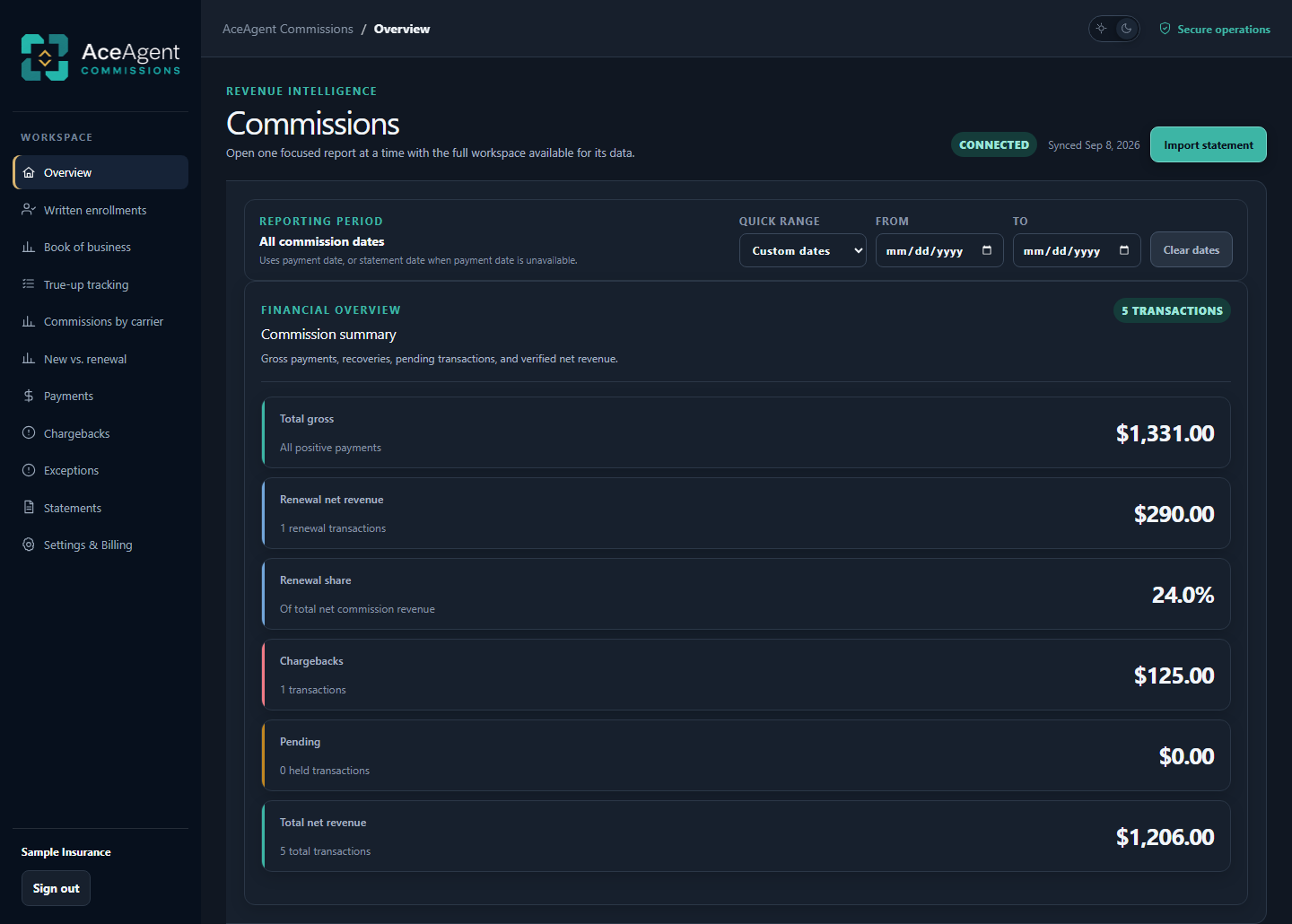
READY FOR YOUR CARRIER STATEMENTS
Use the supported statement your carrier gives you. AceAgent reads and organizes the data—so you can review your commissions without first matching columns, reformatting spreadsheets, or building a statement template.
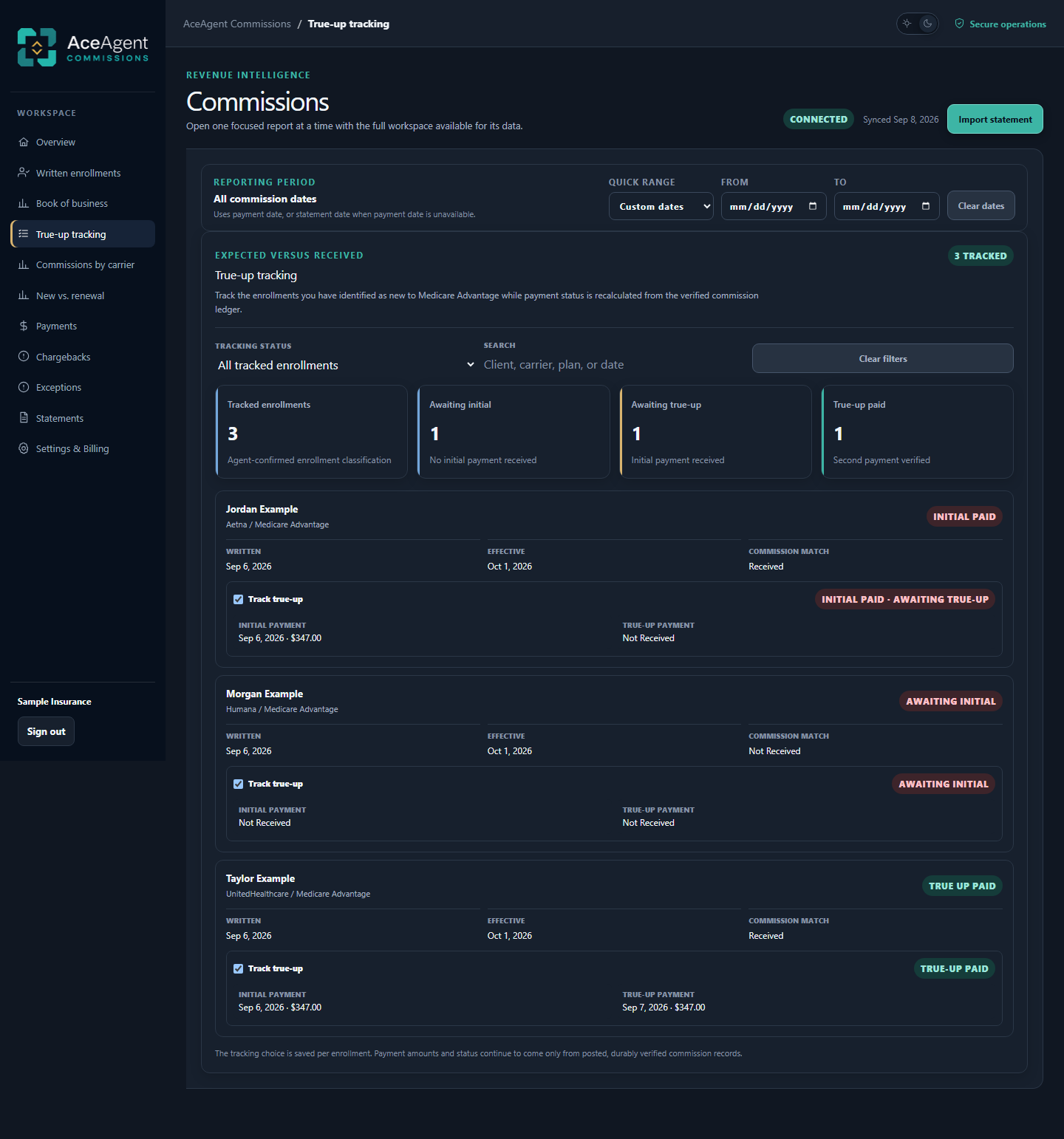
MEDICARE ADVANTAGE TRUE-UP TRACKING
For enrollments you identify as new to Medicare Advantage, follow the initial commission and the true-up separately. See what has arrived and what still needs your attention.
Mark eligible enrollments with Track true-up. Your tracking choice stays with each enrollment.
Review the dates and amounts of the initial payment and verified true-up from your commission statements.
Filter enrollments awaiting an initial payment or true-up, and review possible true-ups before treating them as paid.
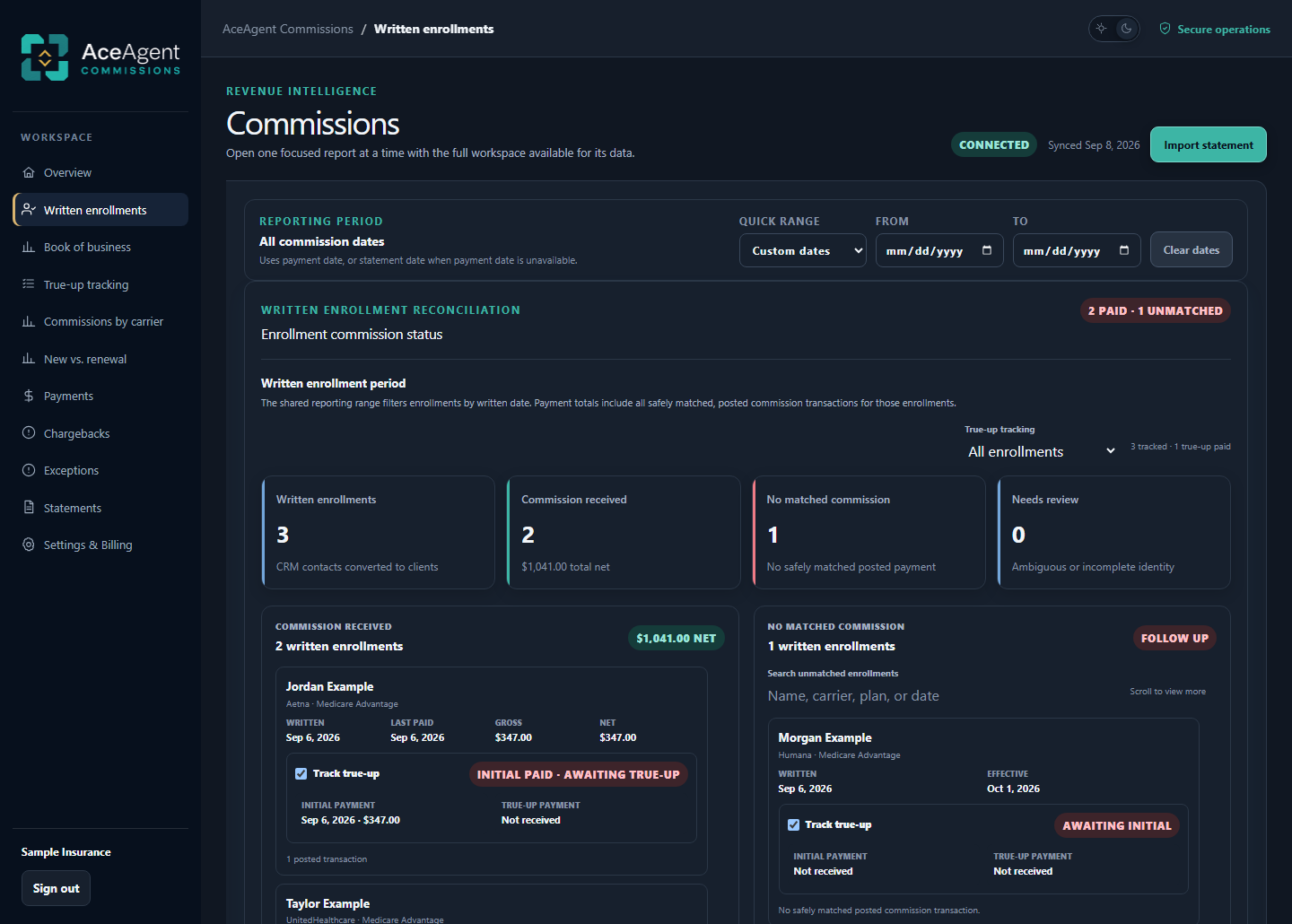
WRITTEN ENROLLMENTS
Connect your CRM once. When a lead becomes a client, its workflow tells AceAgent to add a pending commission. As statements come in, AceAgent checks for matching payments.
Requires a compatible CRM webhook workflow and one-time setup. GoHighLevel tested. Statement reporting works without a CRM connection.
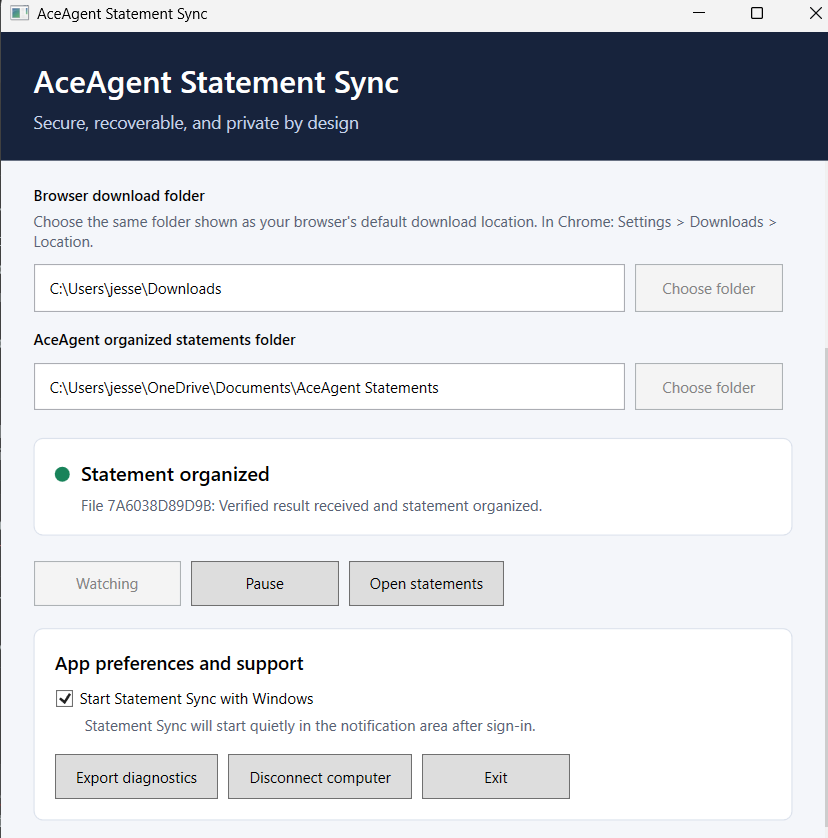
ACEAGENT STATEMENT SYNC DESKTOP APP
Once the app is set up and watching, download your commission statement. Statement Sync finds it, imports it into AceAgent, and organizes the file by carrier and statement year in the folder you choose.
Download your commission statement as you normally would. With the app set up and watching, you don’t need to select or upload the file again.
While watching, the desktop app automatically finds the completed statement in your selected downloads folder.
The app uploads your supported statement automatically. AceAgent reads the data without column mapping or a custom import template, then confirms the import.
Once the import is verified, the app organizes the statement in your selected statements folder, under its carrier and statement year.
Connect the desktop app to your AceAgent workspace, select your download and statements folders, and click Start watching.
Enable Start Statement Sync with Windows to launch quietly after sign-in and recover queued work after a restart.
Pause watching whenever you need to. If a file needs attention, the app shows its status and lets you retry it.
Available for Windows. You remain in control of carrier sign-ins and downloads. Manual browser uploads are also supported.
CARRIER STATEMENT TRACKING
A missing statement can make a paid commission look unpaid. Keep each carrier’s statements on schedule so you know when your commission picture needs fresh data.
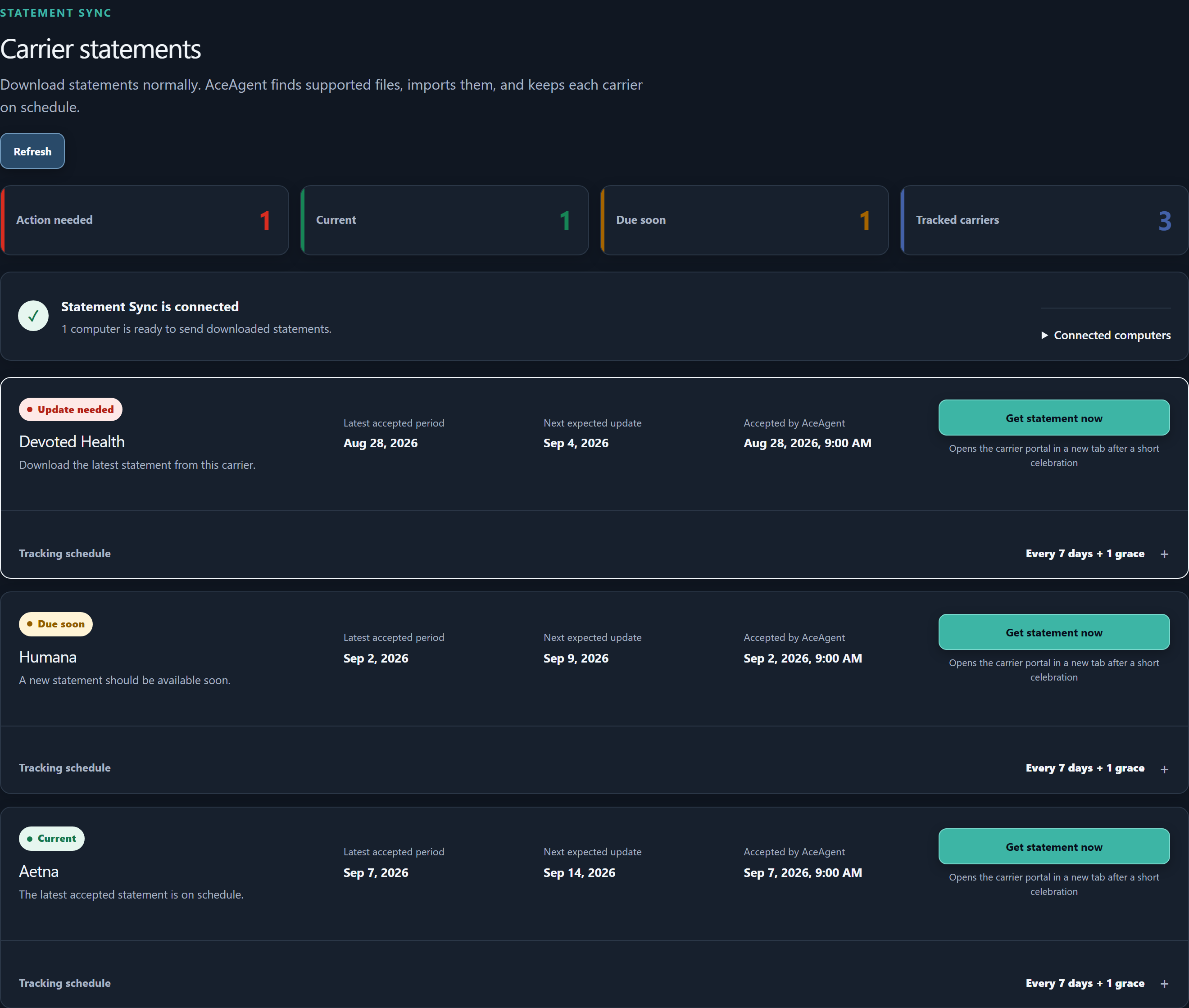
See which carriers are Current, Due soon, or Update needed. Processing and Needs review statuses show when a new file is still being checked or needs your attention.
Choose how often to expect a statement from each carrier. See the latest accepted statement period and the next expected update, without maintaining a separate spreadsheet checklist.
Use Get statement now to open the carrier portal, sign in, and download your statement. The AceAgent Statement Sync Desktop app imports it, and AceAgent updates the carrier’s status after checking the statement.
CRM-TO-CARRIER BOOK OF BUSINESS RECONCILIATION
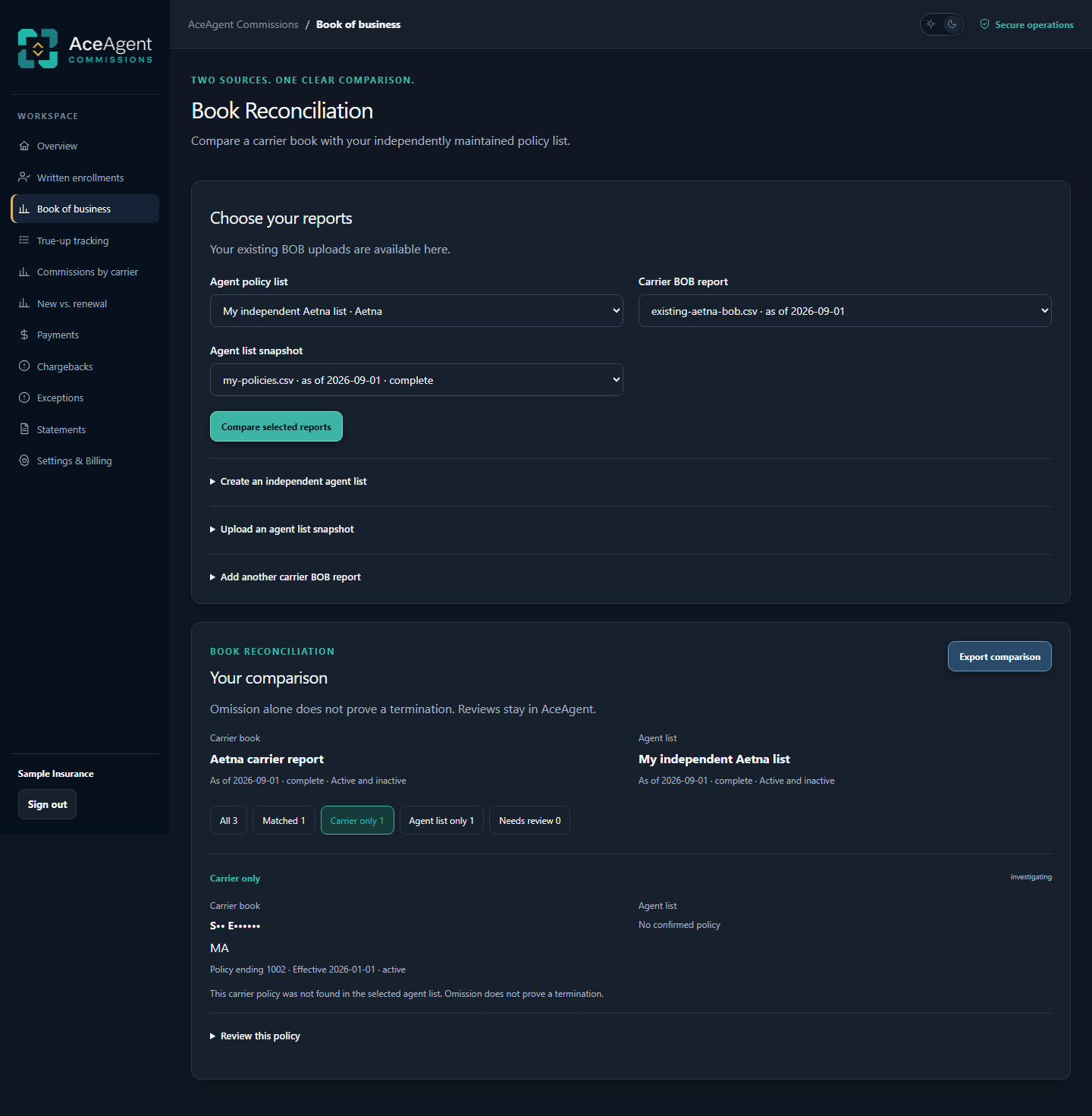
Bring your exported CRM client list and the carrier’s Book of Business report together. Find policies that appear in one book but not the other, and review differences in policy status.
Upload your CRM’s client or policy export and the carrier’s Book of Business report. Choose the snapshots you want to compare.
Review matched policies, carrier-only policies, client-list-only policies, and records that need a closer look.
Save your review in AceAgent and export the comparison for follow-up. A missing policy is a reason to investigate, not proof of termination.
LESS SEARCHING. MORE VISIBILITY.
These are screenshots of the actual application, using fictional sample data.
ONE FOCUSED WORKSPACE
The commission tools from AceAgent Toolbox, available as their own subscription.
Compare CRM client conversions with statement payments. Keep unpaid enrollments in view and review uncertain matches before acting.
See commissions by carrier, new business versus renewals, and your payment history. Review chargebacks and exceptions in one place.
Mark enrollments that are new to Medicare Advantage, then track their initial commission and true-up payment separately. Keep enrollments still awaiting a true-up in view.
Compare an exported CRM client list with your carrier’s Book of Business report. Review policies found on only one side and status differences, then save your review and export the comparison.
ONE SUBSCRIPTION. THE FULL COMMISSIONS WORKSPACE.
Start with your own statements. Explore the reports. See how AceAgent fits your day.
Questions before you start? Talk to us$49/month
After your 7-day free trial
Payment method required. Subscription renews at $49/month after the trial. Cancel before it ends to avoid the first charge.
AceAgent shows which carriers are current, due soon, or need an update based on their statement schedules and accepted statement history. You can see what to download next before treating a missing commission as an unpaid enrollment. Statement tracking shows what needs attention; the AceAgent Statement Sync Desktop app handles the files after you download them.
No. Use a supported commission statement as it comes from your carrier. AceAgent reads and organizes the statement data without asking you to match columns, reformat a spreadsheet, or create an import template. You only need to connect the desktop app and choose your folders once, or use a manual browser upload.
No. Statement reports work without a CRM. For automatic pending commissions, connect a CRM that can send a webhook when a lead becomes a client. GoHighLevel has been tested; other CRMs require compatible workflow and field setup.
Your client list is used for book reconciliation. You do not need it to view statement payments, carrier totals, renewals, or chargebacks. A configured CRM connection supplies new client conversions for pending commission tracking.
Install the AceAgent Statement Sync Desktop app on your Windows PC and connect it to your AceAgent workspace. Choose the folder where you download carrier statements. The app detects completed downloads, uploads them for processing, and organizes accepted files. You continue to sign in to carrier portals and download statements yourself.
Yes. Browser uploads are available as an alternative. The AceAgent Statement Sync Desktop app is included in your subscription and is the primary way to import statements as part of your regular download routine.
Statement formats vary. Supported files are processed and checked for duplicate payments. Files or records that need attention are held for review. Use your trial to check the statements you actually receive, or contact support about a specific format.
Select Start free trial to review your trial and enter your email. Choose Create my account and complete verification, then name your workspace and review the required agreements. In Settings & Billing, select Start 7-day free trial to finish secure checkout and activate your trial. A payment method is required. Your subscription is $49 per month after the trial. Cancel through Settings & Billing before the trial ends to avoid the first subscription charge.
YOUR NEXT STATEMENT IS A GOOD PLACE TO START.
7 days free. Then $49/month.